How to add an AI chatbot to your Shopify store
By the Chatbait team ·
Short answer: if your chatbot is a real Shopify app, turn it on from Online Store > Themes > Customize > App embeds. That's the method Shopify recommends. If your chatbot gives you a plain script tag instead (like Chatbait), you'll add it through a Custom Liquid section or by pasting it into theme.liquid before </body>. Either way, duplicate your theme first so you always have a working copy to go back to.
Steps checked against Shopify's own help page on October 18, 2026.
App embeds vs pasting a script: which do you need?
- App embeds are for chatbots installed as a real Shopify app from the App Store. You just turn a switch on.
- Pasting a script is for chatbots (like Chatbait) that give you one line of code to add yourself, no app install needed.
Check which one you have before you start. If you installed something from the Shopify App Store, skip to the app embeds section below.
Safety tip: duplicate your theme first
Before editing any code, go to Online Store > Themes, find your live theme, click the "..." menu, and choose Duplicate. Make changes on the duplicate, check it works, then publish it. If anything goes wrong, your original theme is untouched. Shopify's own help page notes you should be comfortable with HTML and Liquid before editing theme code directly, so this backup step matters.
Method 1: turning on an app embed
- Go to Online Store > Themes.
- Click Customize on your live theme (or your duplicate, if you're testing first).
- In the left panel, click App embeds (usually a small icon near the bottom).
- Find your chatbot app in the list and switch it on.
- Click Save.
That's it. No code needed.
Method 2: pasting a script yourself
Use this if your chatbot gives you a snippet like <script src="..."> to paste in, with no app to install.
- Go to Online Store > Themes, and on your duplicated theme click the "..." menu, then Edit code.
- Two options, pick one:
- Custom Liquid section: in the theme editor, add a new section using the "Custom Liquid" section type, and paste your script there. This is easier to turn on and off later.
- theme.liquid directly: open
theme.liquidfrom the file list, scroll to the very bottom, and paste your script right before</body>.
- Save the file.
- Preview the duplicate theme to check the chat bubble appears.
- Once it looks right, go back to Online Store > Themes and publish the duplicate as your live theme.
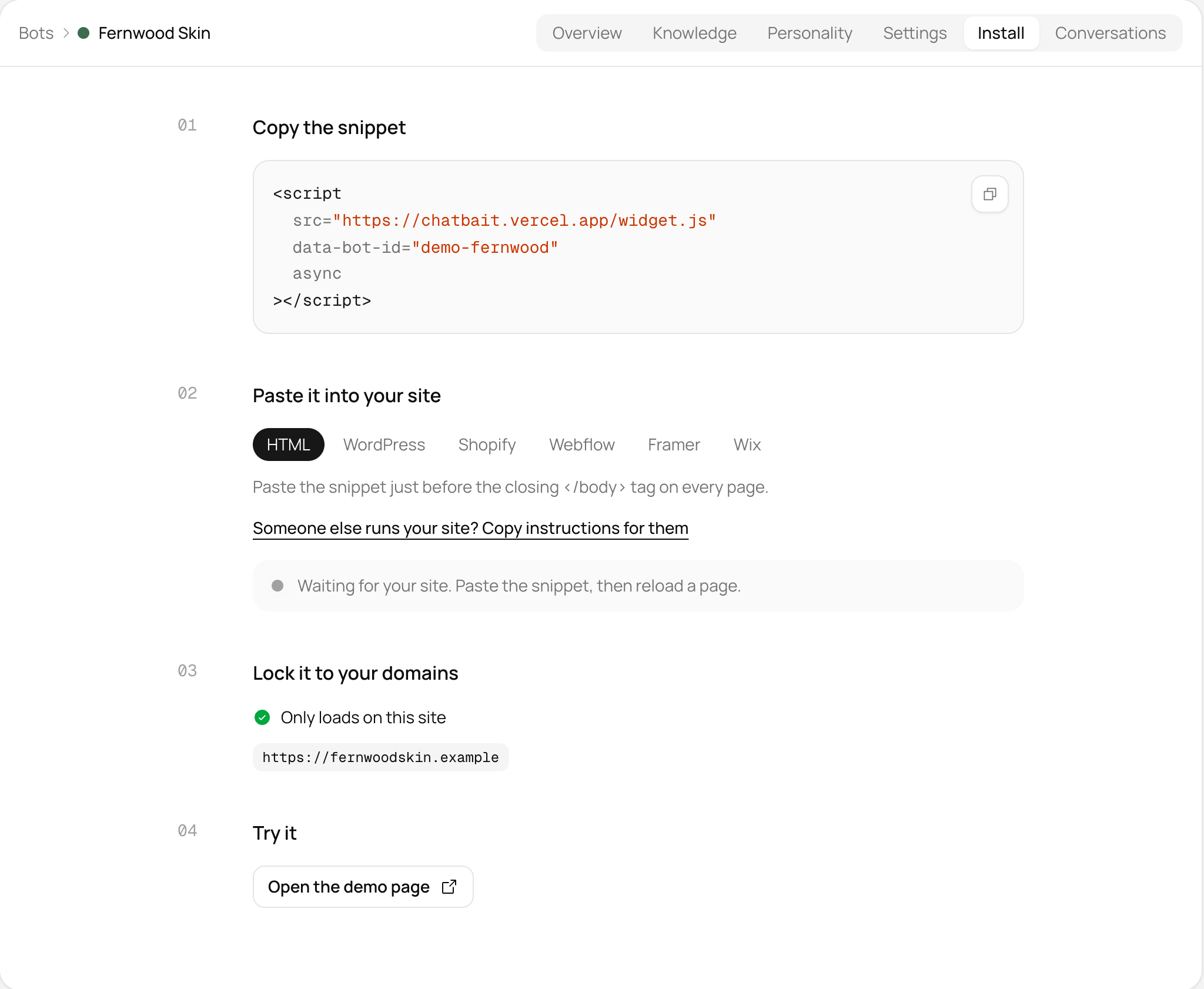 Chatbait's Install page, showing the one line script snippet, platform tabs, and the option to lock it to your domains
How to check it worked
- Open your store in a normal browser tab (not the theme editor preview).
- Look for the chat bubble, usually in a bottom corner.
- Click it and ask a real question a customer might ask, like a shipping or return question.
- If your chatbot has a dashboard, check that the conversation shows up there.
If the bubble doesn't appear, the most common causes are: the script was pasted in a draft theme that isn't published yet, or it was placed in the <head> instead of before </body>.
A note on which chatbot to add
Shopify Inbox is free, built in, and already knows a customer's order history, so if most of your questions are about orders or delivery, turn that on first. A chatbot that reads your website, like Chatbait, fits alongside it when shoppers ask detailed questions that are already answered on your pages, such as sizing, ingredients, or shipping rules, since it reads those pages and answers from them directly. It works the same way on Shopify as it does on any other platform, so the install steps above (app embed or pasted script) apply whichever one you choose. See Shopify Inbox vs a dedicated AI chatbot for a full comparison.
Common mistakes to avoid
- Editing the live theme directly. Always duplicate first, even for a one line change. A typo in theme.liquid can take down your whole storefront until it's fixed.
- Pasting the script twice. If you try the app embed and the manual script method, you can end up with two chat bubbles on the page. Pick one method.
- Forgetting to publish. Changes made on a duplicate theme don't go live until you publish that theme from Online Store > Themes.
- Placing the script in the wrong spot. It needs to sit right before
</body>, not inside<head>, or it may not run at all on some themes.
Frequently asked questions
Do I need to install an app to add an AI chatbot to Shopify?
No, not always. If your chatbot gives you a script tag instead of a full app, you can paste that into a Custom Liquid section or theme.liquid, without installing anything from the App Store.
Why duplicate the theme before editing code?
So you always have a working, untouched copy of your store's theme. If the edit breaks something, you switch back to the original instantly instead of undoing code changes under pressure.
Where exactly do I paste the script in theme.liquid?
Right before the closing </body> tag, near the bottom of the file.
How do I know the chatbot is actually working?
Open your live store (not the theme editor), look for the chat bubble, and send it a test question. If the chatbot has a conversations dashboard, check the test message shows up there too.
Should I use Shopify Inbox or add a separate AI chatbot?
Shopify Inbox is free and good at order related questions since it sees purchase history. A chatbot that reads your website answers detailed content questions, like sizing or shipping rules, from your own pages. Many stores use both, as long as they're set up so only one chat bubble shows at a time.
Get the template pack by email, plus new templates when we add them.
We'll email you the template pack and new templates now and then. Unsubscribe any time. Privacy.